Step 1
Upload your image
Open the AI Upscaler and upload any JPG, PNG, or WebP file. Start with the best source image you have for the cleanest output.
Generate
Edit
Customize
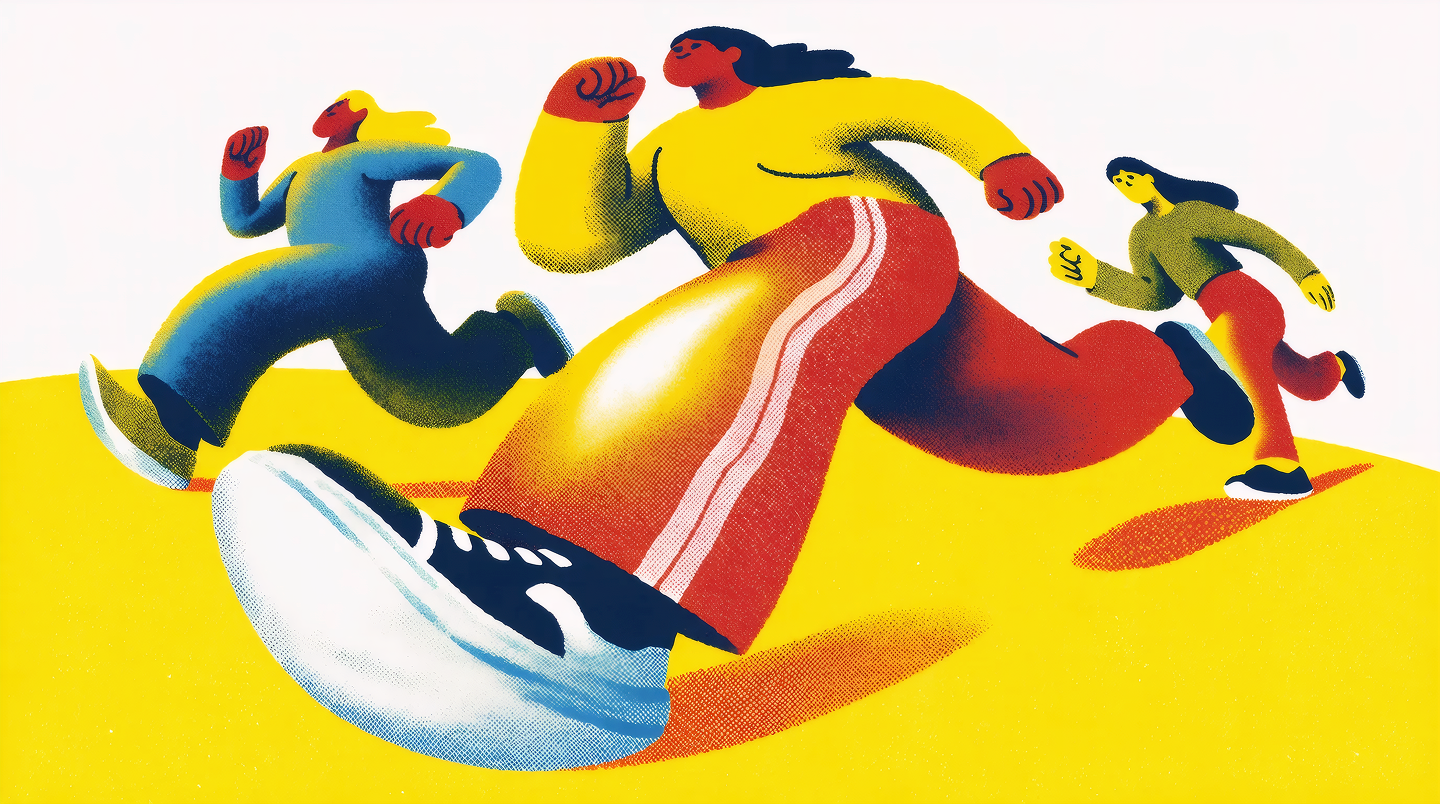
"People running, risograph poster"
Generate
Edit
Customize
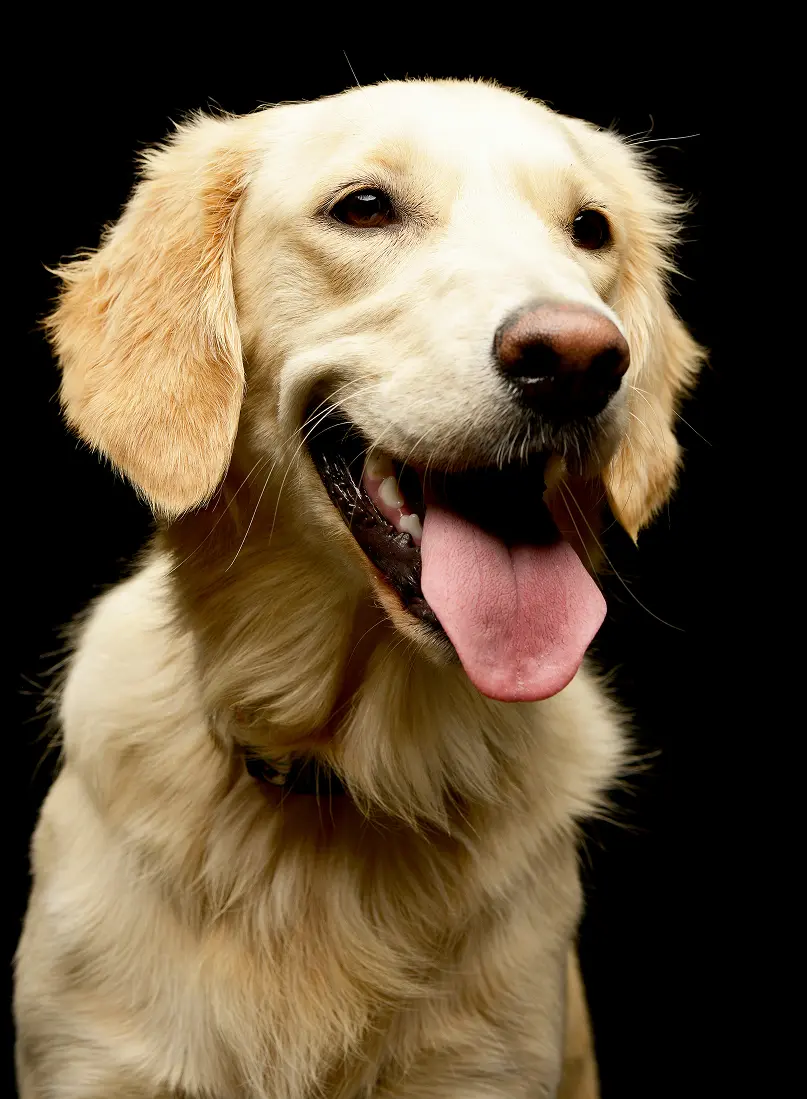
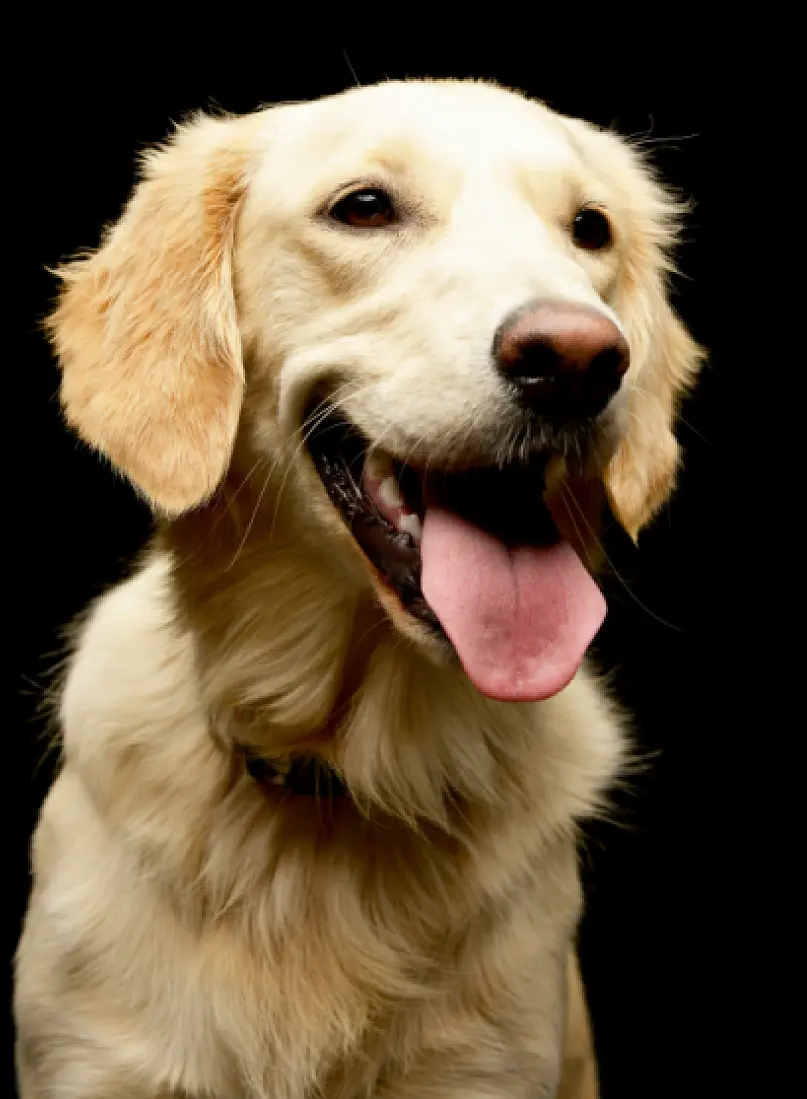
Transform lower-resolution images into sharp, high-quality photos. Our AI-powered upscaling delivers professional results in seconds by intelligently restoring detail, texture, and clarity. Need restoration-first cleanup instead? Use the AI Image Enhancer.
By uploading an image or URL you agree to our Terms of Service and Privacy Policy.
Drag and drop
anywhere to start
Upscale for free now
Make any photo high-resolution. Our AI-technology has upscaled hundreds of millions of images, keeping photos sharp and true to the original. Perfect for print, web, or display. Need restoration-first cleanup instead? Open AI Image Enhancer.
or drop a file
paste image or URL
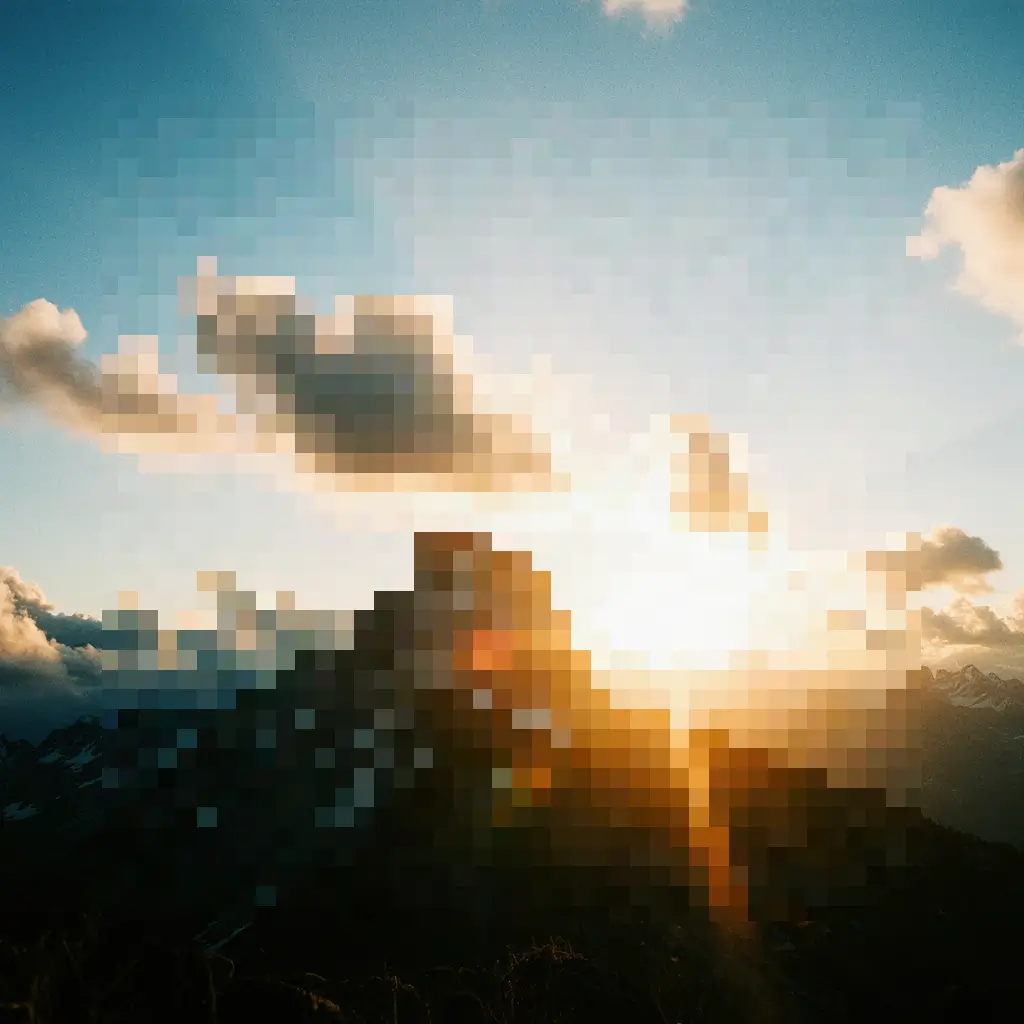
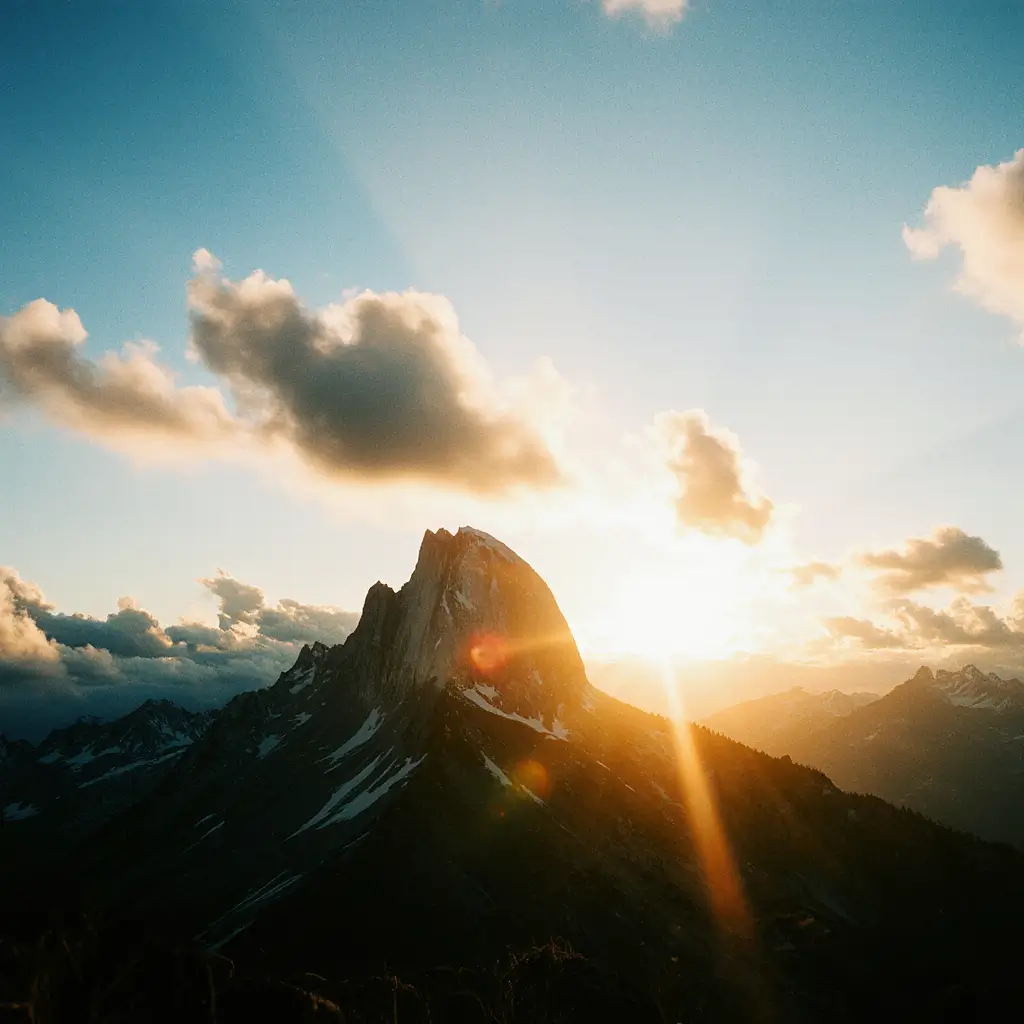
By uploading an image or URL you agree to our Terms of Service and Privacy Policy.
Over 30 million users trust Krea including
some of the largest companies
in the world
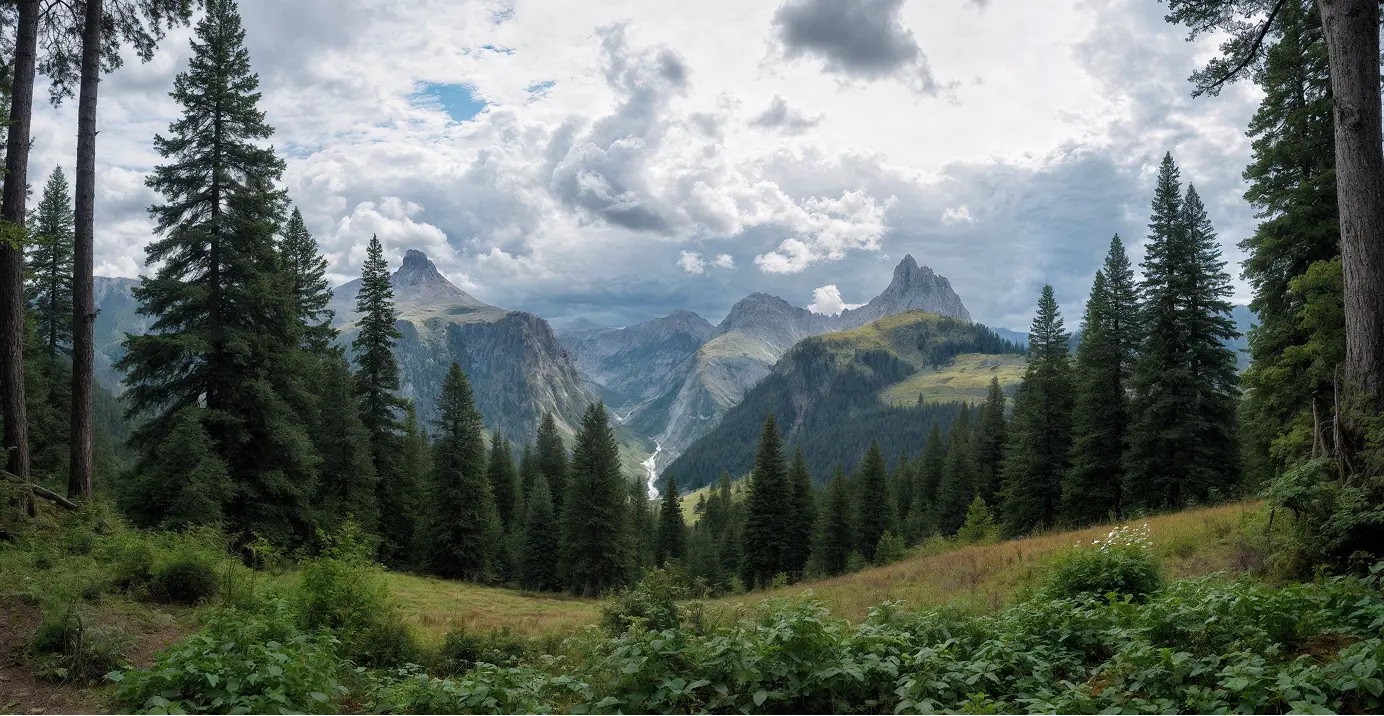
Landscapes
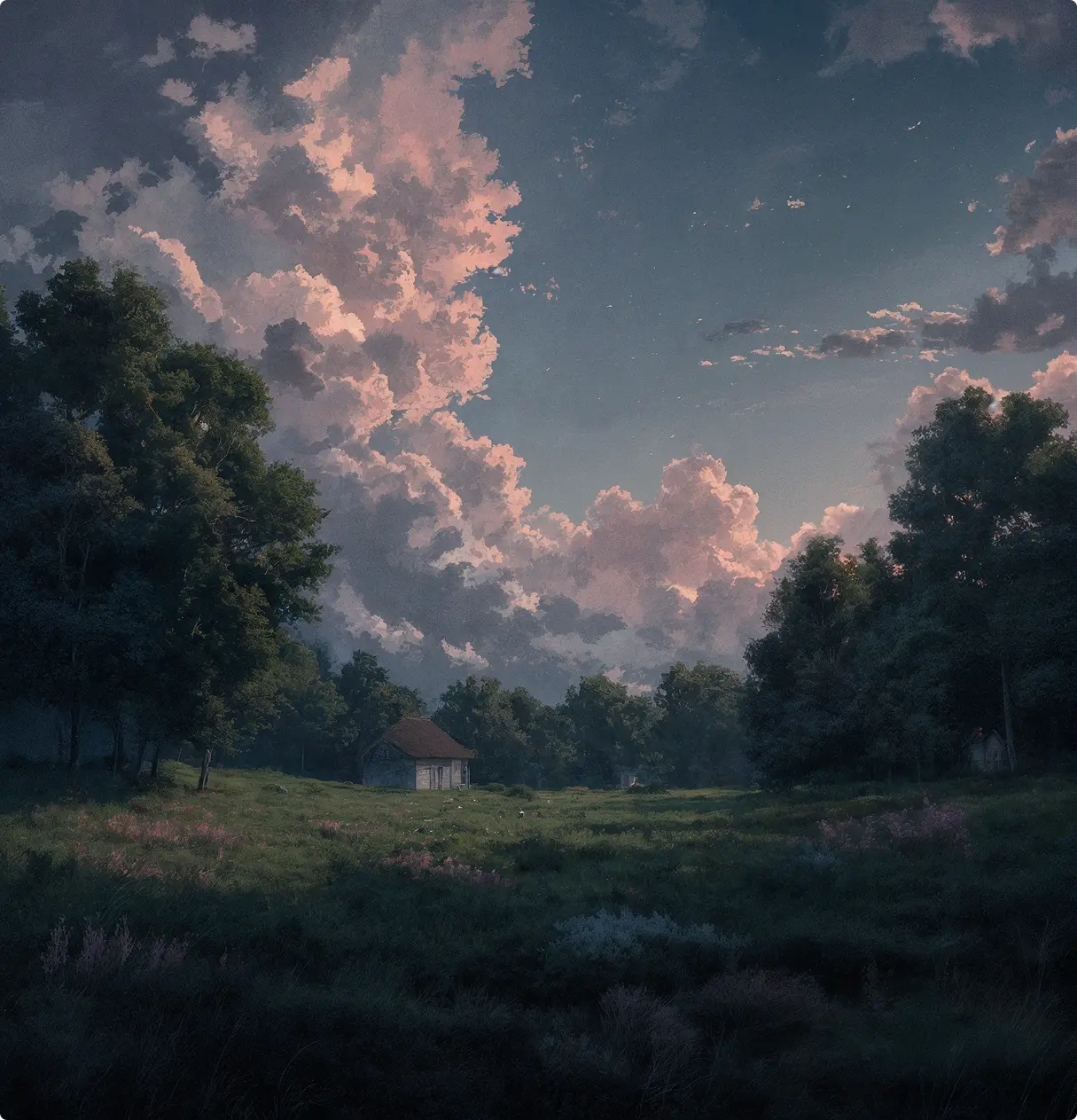
Art
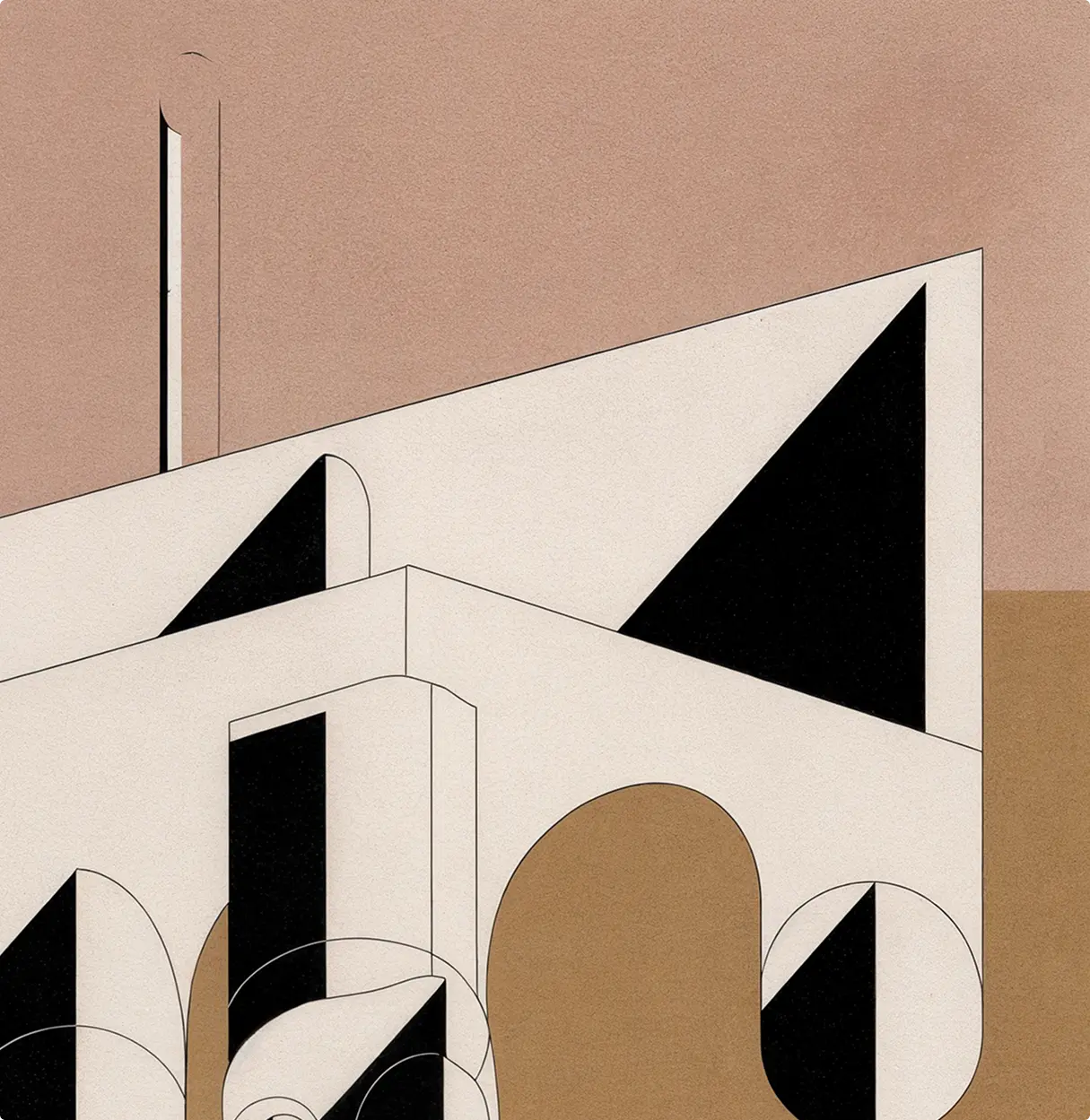
Graphics
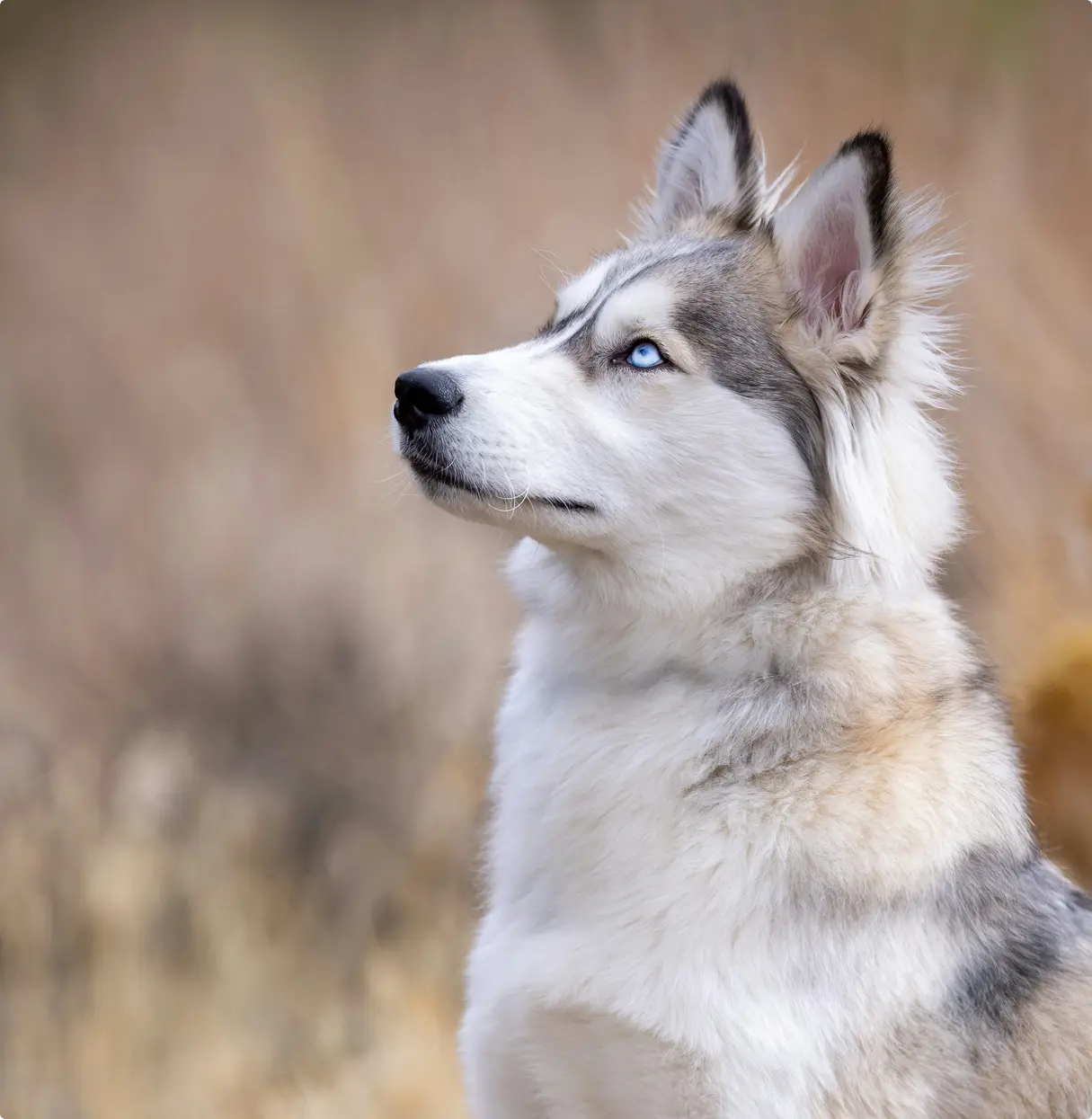
Animals
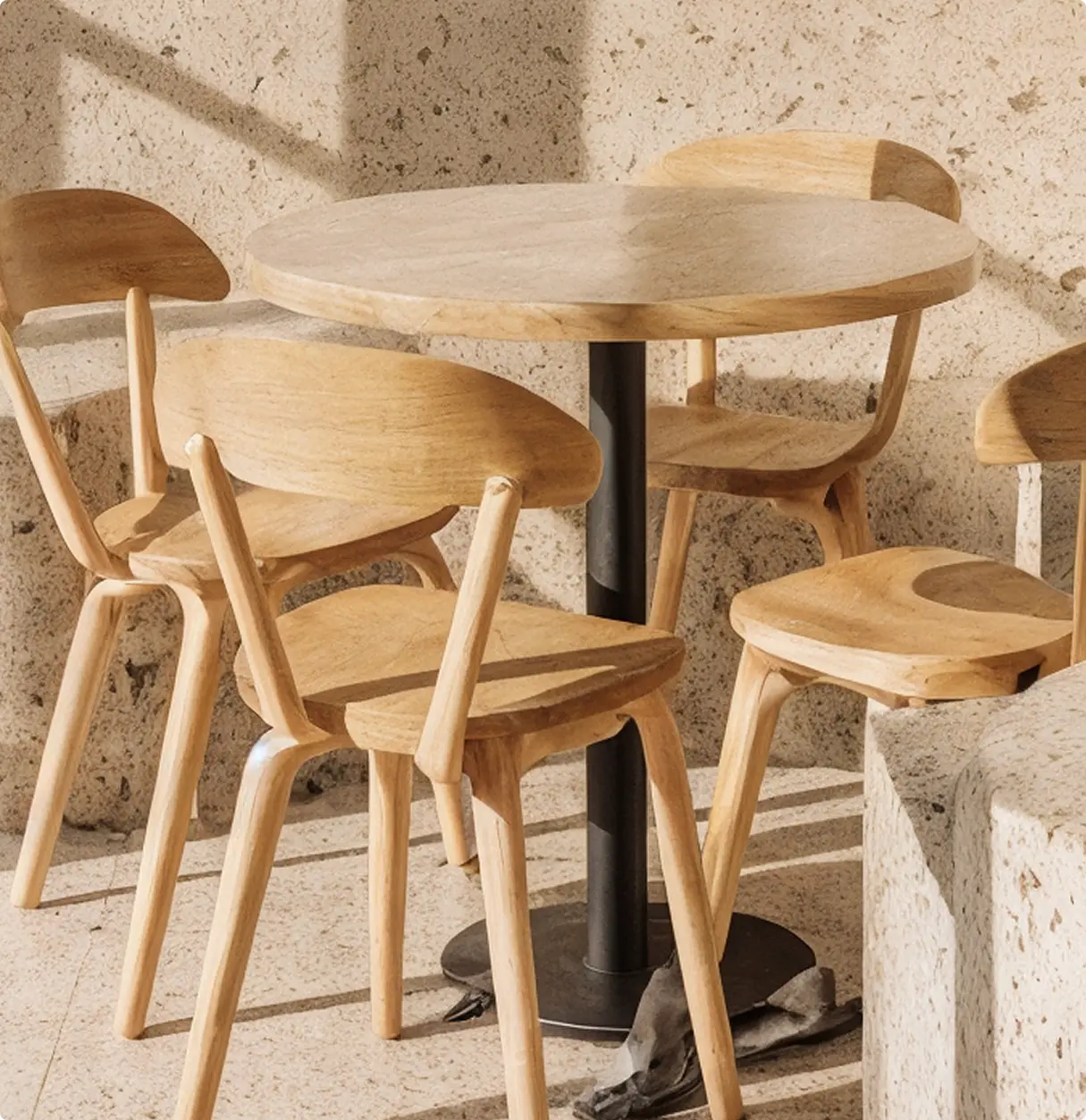
Products
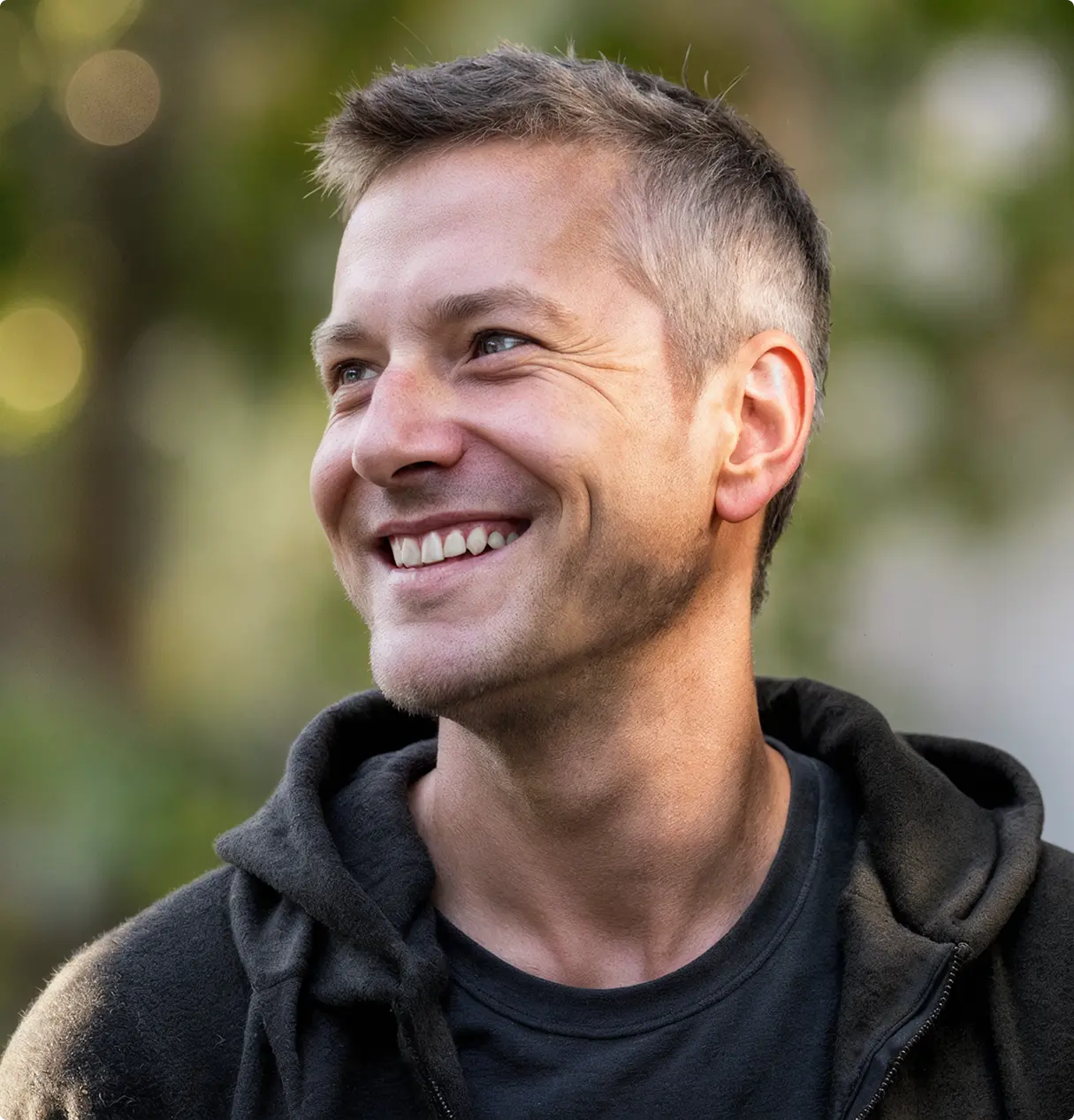
People

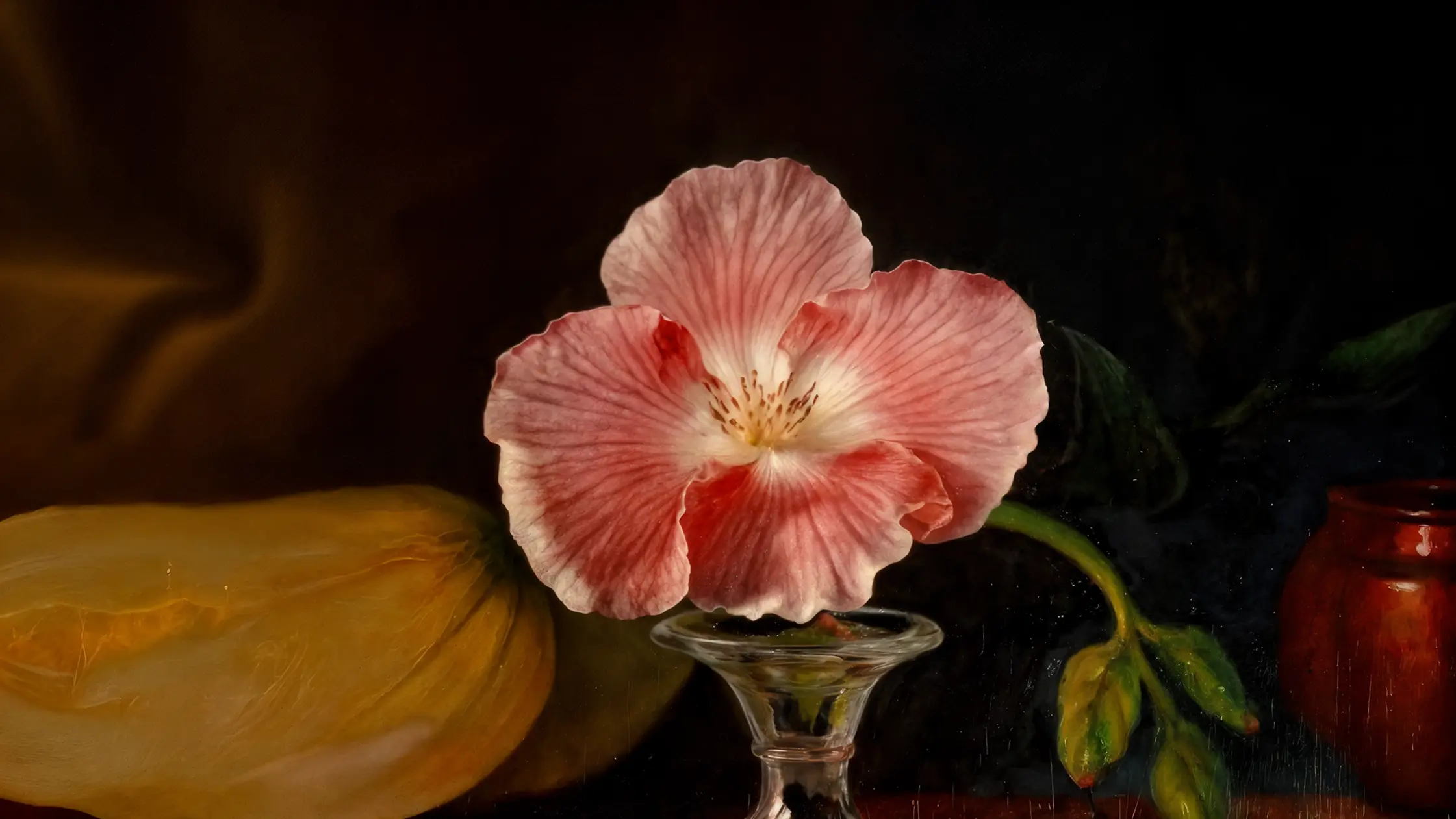
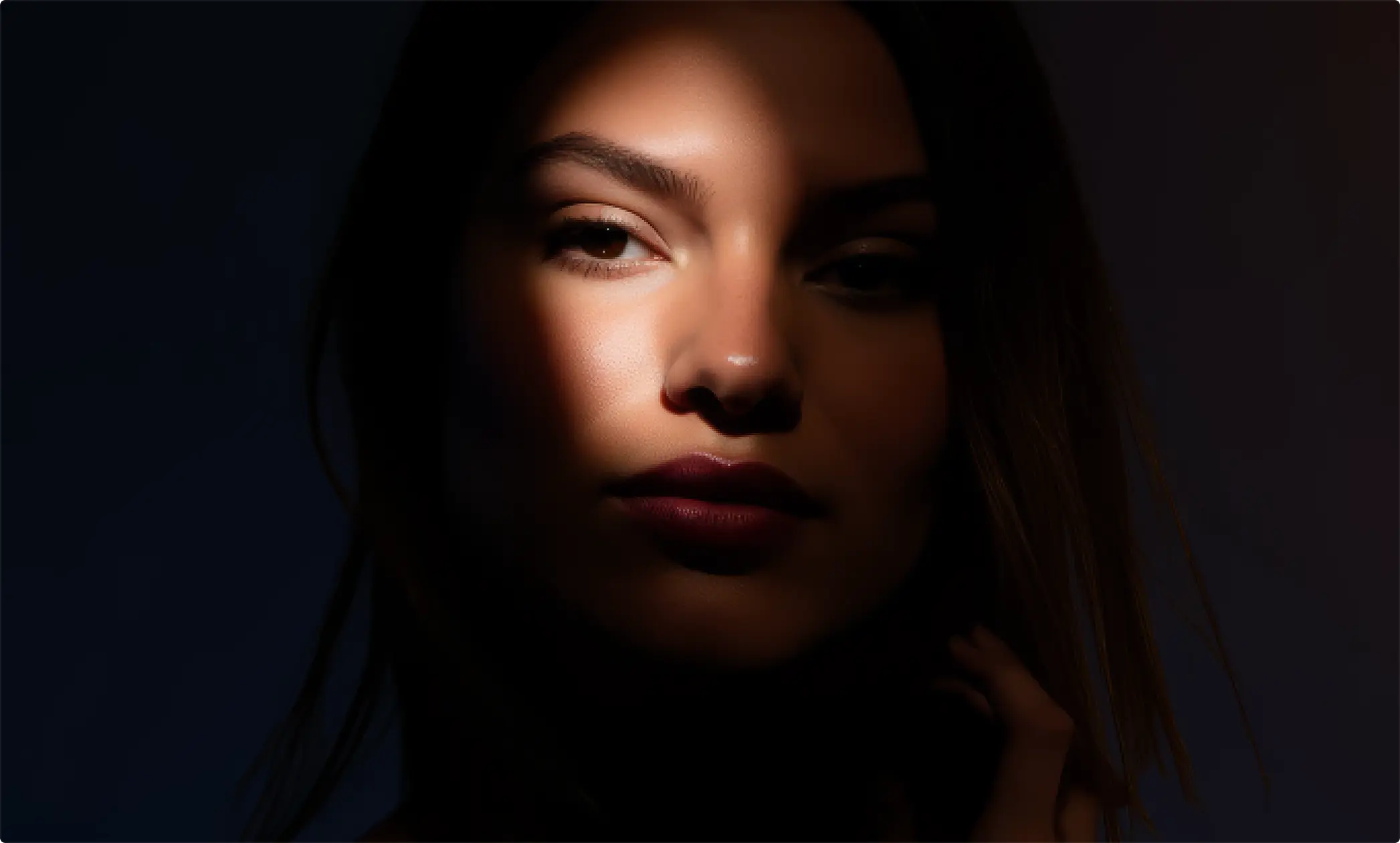
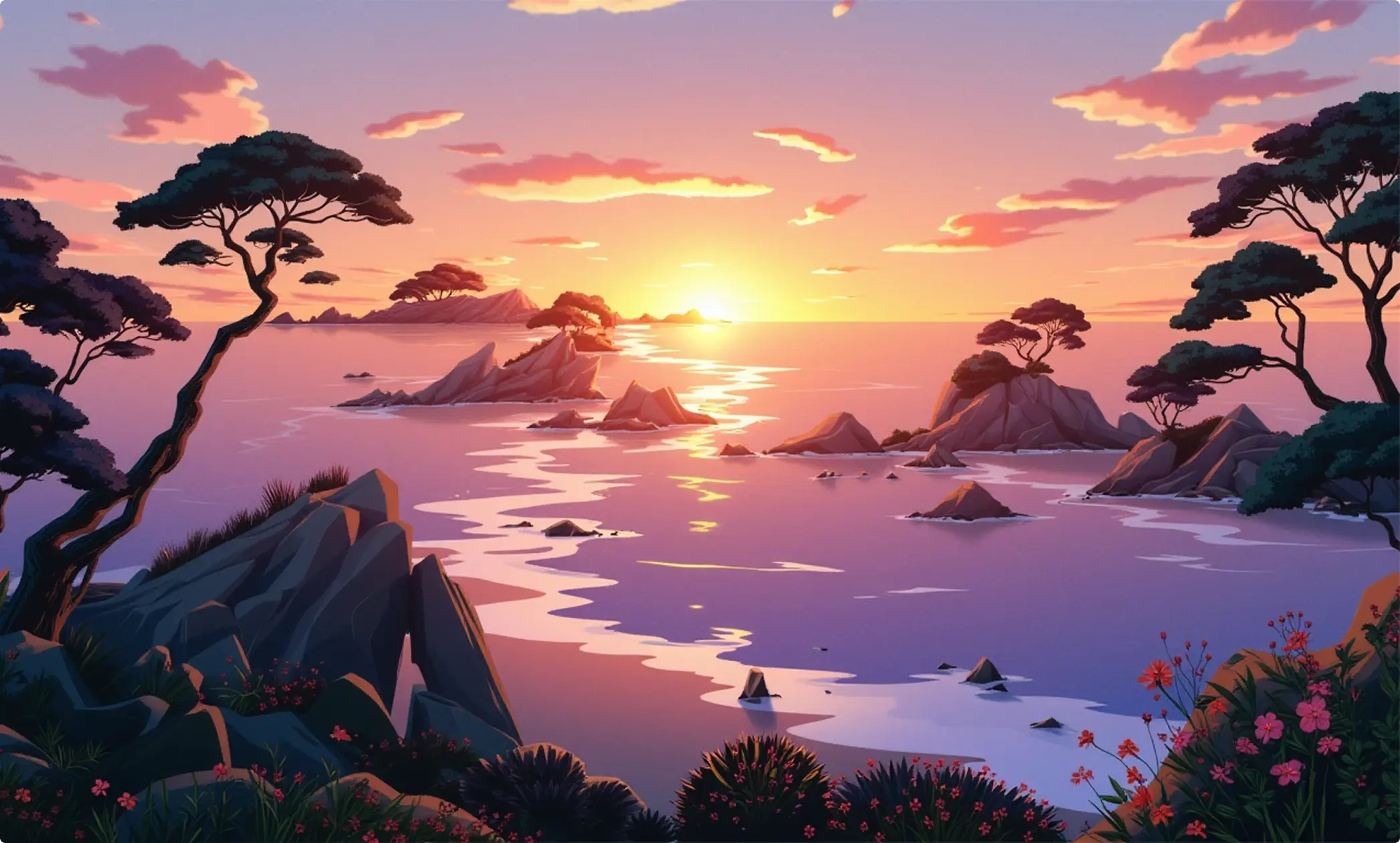
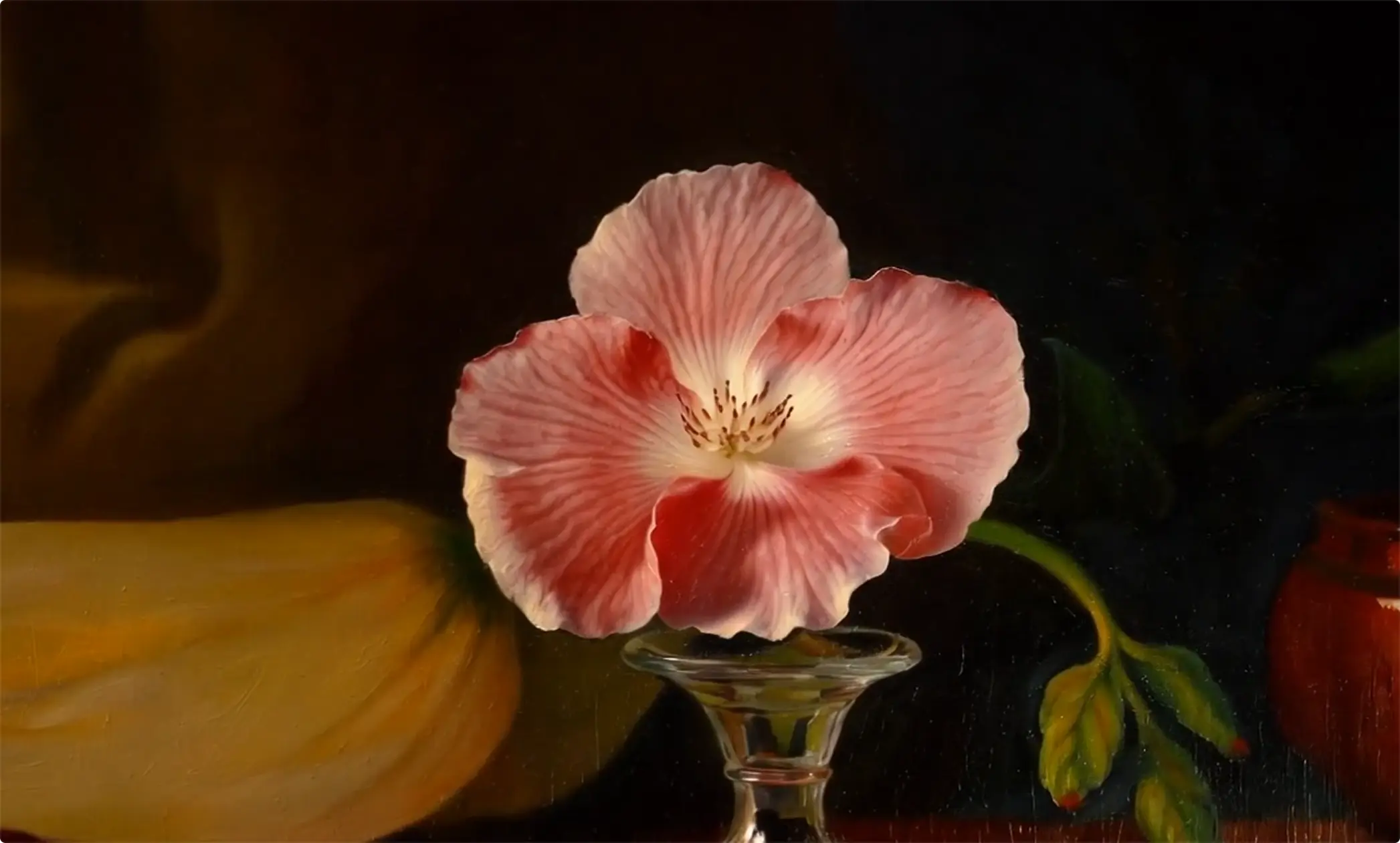
Upscale pixelated or blurry images to 4K, 8K and beyond. Our AI photo upscaler boosts resolution, sharpens details, and reduces noise. Turn any low-res JPEG, PNG, or WebP into a high-res, professional-quality photo in one click.

Our AI intelligently reconstructs fine details, textures, and sharpness. Perfect for rescuing old photos, fixing compression artifacts, or transforming blurry images into sharp, vivid results.

Upscale all your media with Krea's upscaler. Transform low-resolution footage into crisp 4K videos with reduced noise, higher FPS, and upscaled detail.

Upscale multiple images at the same time. Just upload your photos and let our AI upscale them all together, fast.

The fastest way to upscale images. Get professional-quality upscaled images in seconds, not minutes, thanks to our custom-built processing pipeline.
How It Works
Use this quick 3-step workflow to increase resolution while keeping your original composition intact.
Step 1
Open the AI Upscaler and upload any JPG, PNG, or WebP file. Start with the best source image you have for the cleanest output.
Step 2
Pick your upscaling level (2x, 4x, 8x, or 16x) and run the upscale job. For resolution-first output, keep settings focused on size increase and detail recovery.
Step 3
Download your high-resolution result, or continue in the AI Image Enhancer when you want additional denoise, cleanup, or restoration passes.
A practical comparison for common upscaling workflows, including resolution, batching, model access, and speed.
| Category | Krea | Topaz | Bigjpg | Let's Enhance |
|---|---|---|---|---|
| Upscaling range | 2x, 4x, 8x, 16x | High-resolution modes (model-dependent) | 2x, 4x, 8x, 16x | Resolution presets (model-dependent) |
| Video support | Yes | Yes | No | No |
| Batch workflow | Yes | Yes | Plan-limited | Yes |
| Model flexibility | Multiple models in one workspace | Topaz-only models | Single upscaling workflow | Image-enhancement model set |
| Free tier access | Yes | Trial | Yes | Free credits |
| Typical speed class | Seconds to about 1 minute | Minutes (hardware-dependent) | Queue-based | Seconds to minutes |
Comparison reflects publicly documented product capabilities as of April 2026.
Optimize product visuals, restore photo quality, and prepare design assets with resolution-first workflows.
Upscale catalog shots for zoomable storefronts and paid ads. Start in Krea Upscaler, then polish details in the AI Image Enhancer.
Upscale product photosRecover clarity in older or compressed photos before printing or archiving. Use upscaling first for resolution, then run restoration and cleanup in Enhancer.
Restore photo qualityPrepare crisp visuals for banners, social posts, and presentations. Pair Upscaler with Image and Edit workflows for production-ready output.
Create design-ready assetsTopaz + Topaz Generative
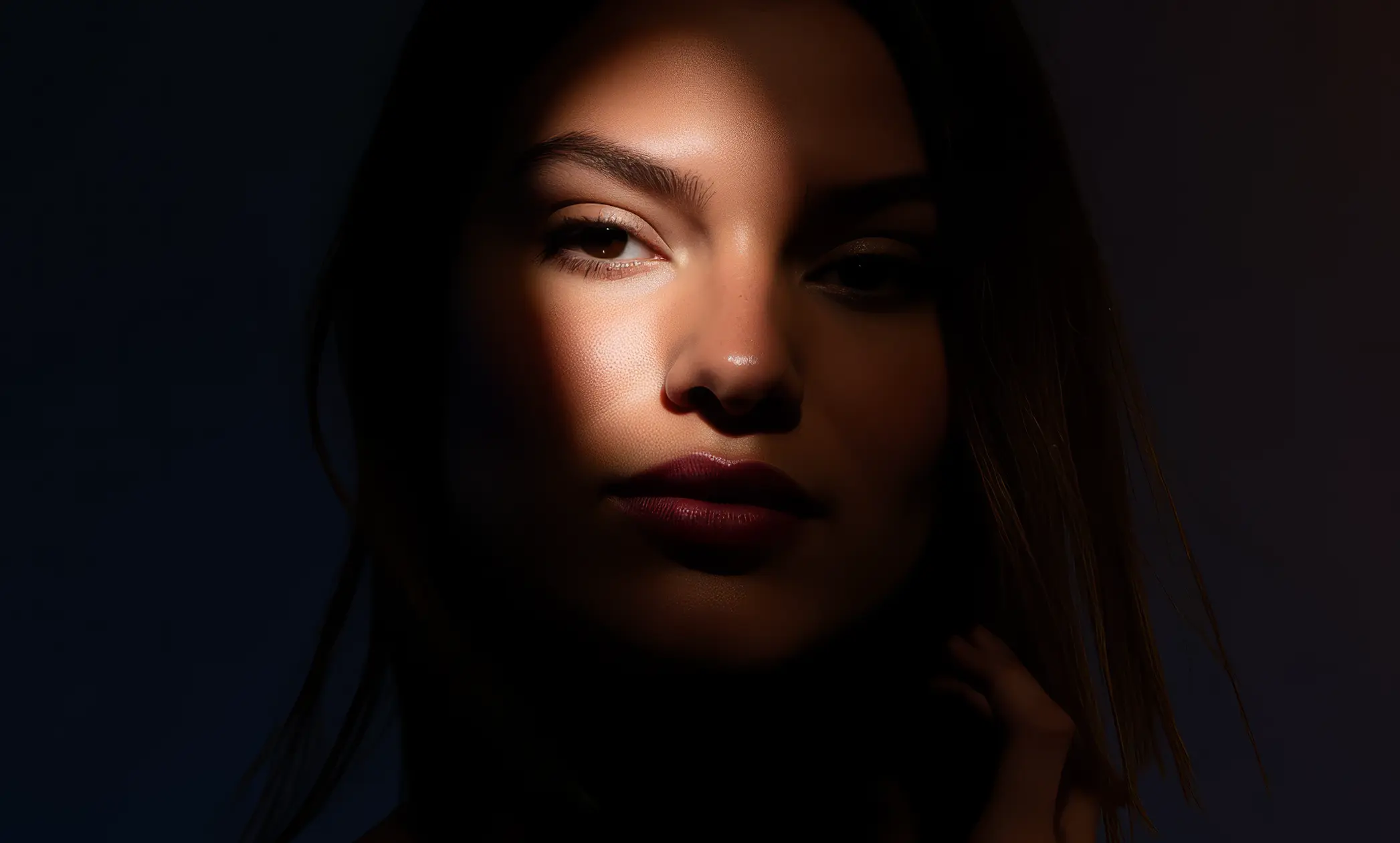
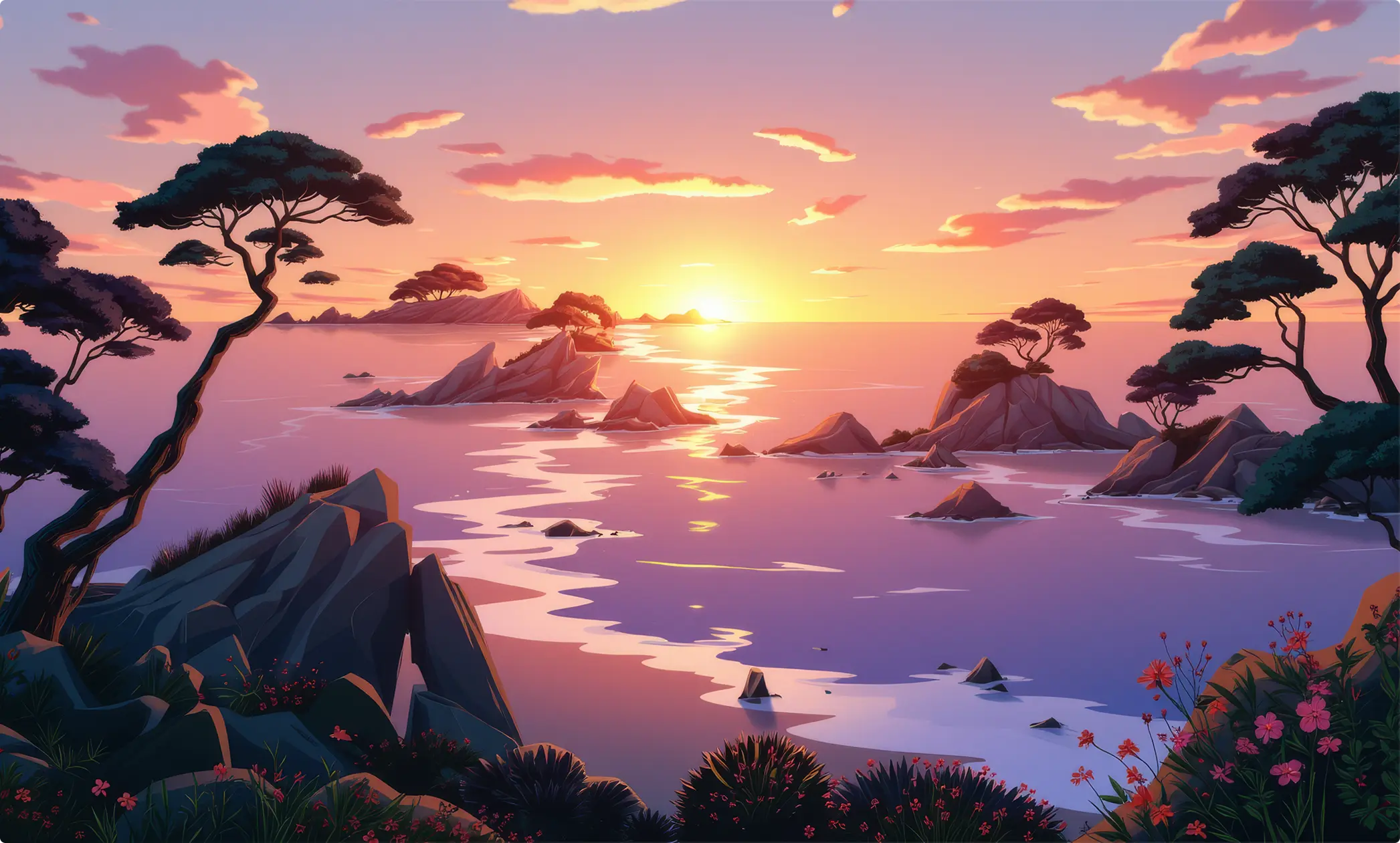
Topaz image and photo upscaling tools focus on realistic and natural-looking results. Bring out clarity from your photos without sacrificing realism. Get stunning results in seconds.
Try TopazGet free daily credits to try basic features.
Access our most popular features
Advanced features and discounts on compute units
Full access with higher discounts on compute units
Workplace management, collaboration, and enterprise customizations
Secure and collaborative workspace for growing teams
Enterprise-grade security with dedicated support and admin features
See what creators are restoring and enhancing in Krea, then upload your own image and upscale it in seconds.






Read our testimonials
Real reviews on TrustpilotSo many AI tools out there but I always come back to Krea. It's really the one AI platform that 'just works'.
FYN
Krea's interfaces are still the best in the industry. Everything looks and feels so clean and easy to use! Imo the easiest to use gen AI website.
Lynn
Ultra fast generations. Extremely simple to use. All the latest AI models.
Daniel
KREA is the only AI subscription I have right now besides ChatGPT.
Sophia M.
I'm a Krea Max user. It's crazy how fast they add models. I see a new AI model on twitter and the same day krea already offers it.
Wirot Ch.
Still the most powerful AI creative suite out there.
Gravion
An AI image upscaler uses artificial intelligence to increase image resolution. AI image upscaling generates new pixel information, resulting in sharper, clearer images than traditional upscaling techniques.
Krea offers free AI image upscaling, so you can try the magic of AI without spending a cent. You can upscale and enhance several images per day at no charge, enough to experiment with different parameters.
Upscaling takes from a few seconds to a minute, depending on how the level of upscaling you requested, the model used, and our overall server load.
AI-powered upscaling is perfect for: Graphic designers who need high-definition visuals for print and digital media Businesses E-commerce polishing product photos for online stores Photographers looking to improve resolution of their images Anyone looking to increase the resolution of their images or restore photos with AI
AI upscaling can significantly improve moderately blurry or compressed images by reconstructing details and reducing artifacts. However, it cannot recover information that was never captured—extremely blurry, heavily pixelated, or motion-blurred images have fundamental limits. The AI makes intelligent guesses about missing details, which works well for minor quality issues but cannot perform magic on severely degraded sources. When there's a blurry face, for example, the AI will do its best to fill in the space with a realistic face, but there's no guarantee it will look like the person in the original photograph. The best results come from images that are small but relatively sharp.
Yes, you can queue multiple requests, whether that's for different images, or multiple enhancement requests of the same image, if you want to try alternative versions with different models or settings.
Yes! Users of any of our paid plans get commercial rights to use Krea outputs, so you can use them as you wish as long as you have the rights to use the original image commercially. (Images upscaled by free users are not licensed for commercial use.) Remember that other legal restrictions around AI use may apply in your jurisdiction, including personality rights, copyright, disclosure of AI user, and and other considerations.
Krea supports common image formats such as JPG, PNG, and WebP, so you can quickly upscale most photos, graphics, and AI images. For best results, upload the highest-quality source file you have.
Use 2x for fast quality improvements and smaller files, 4x for most print or marketing use cases, and 8x when you need very large outputs or aggressive detail recovery. If unsure, start with 4x and compare.
No. Upscaling keeps your original composition and aspect ratio while increasing pixel count and improving clarity. Your image framing stays the same, just at a higher resolution.
Yes. Krea works well with many visual types, including photos, digital art, illustrations, product graphics, and social assets. You can test different upscaling levels to find the best look for each style.